
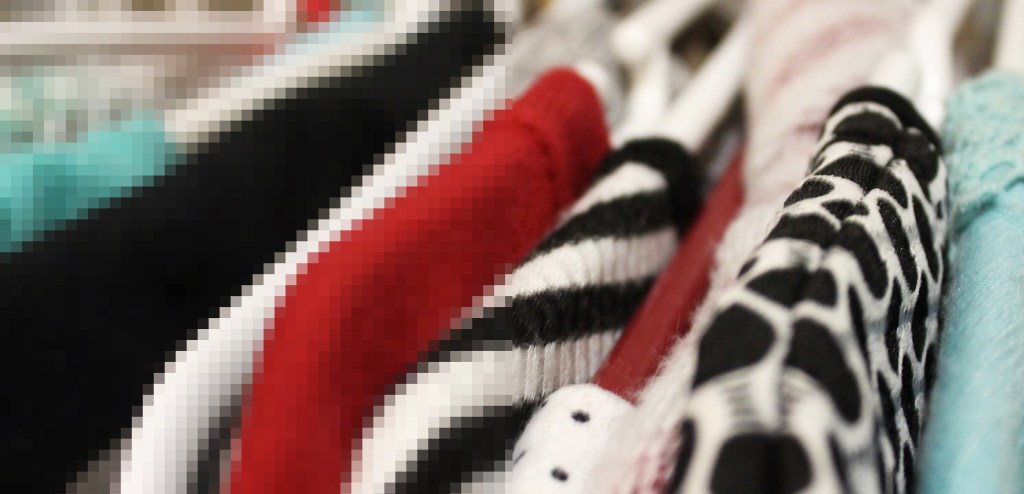
Many times, a client may send small Jpegs or ask for an image from the internet. As designers, we know how necessary image resolution is for large prints. A low-quality image may harm the credibility of the client, and if it is pixelated, it may lose detail. Let’s delve into what image resolution means.
What Does Image Resolution Mean?
Image resolution can refer to photography or digital artworks. The image resolution refers to pixels per inch (PPI) or dots per inch (DPI). PPI or DPI is the number of pixels or dots that are present per inch of the image. The higher the resolution, the more information is available, allowing for crisp imagery. Low resolution will result in a pixelated look when stretched out, not what you want.
The Difference Between DPI And PPI
DPI and PPI may be confusing to comprehend at first as they seem so similar and sometimes used interchangeably. The fact is, one is referred to as web-resolution while the other relates to physical printing resolution.
DPI
Dots per inch refers to the actual dots that are created by the printer to produce an image. A printer overlays CMYK colored dots to color the image. DPI is only relevant when printing, as your monitor will not be able to show a difference between 100DPI and 300DPI. However, some designs may be cross-platform. For instance, when a logo is on a website and a brochure, it is essential to keep a copy of the logo file that has a high DPI for this reason.
PPI
Pixels per inch refers to web resolution. The more pixels per inch, the more details appear on the screen. Two screens can have the same web resolution, but different dimensions. For instance, if the larger screen has a high resolution, it can fit more elements within it. A large screen can make the image appear smaller but also crisper in quality. The smaller screen will have the same crispness but with fewer elements on the screen, letting them appear larger.
Can You Adjust The Resolution Of An Image?
You may have found the perfect imagery for your upcoming project, but the resolution isn’t the size that’s required. You could increase the resolution of the image within Photoshop, but that could harm the quality. You can always make an image smaller and keep the same sharpness. When enlarging the PPI, you are stretching the image to the point where the computer has to invent new pixels. It can result in a low-quality image resolution. The best solution for this is to retake the photo at a higher resolution.
 Emily Streit | A Graphic Design Portfolio